![Logo-RETR-300x300-1.png]](https://kb.retr.app/hs-fs/hubfs/Logo-RETR-300x300-1.png?width=60&height=60&name=Logo-RETR-300x300-1.png)
How do I find an agent by name?
If you already know the name of the agent you want to look up, you can use the search bar at the top, which will run a broad search of the entire RETR platform (keep in mind results will be limited because of this)

Or, you can follow the steps below to get to the main Agent search page:
- Navigate to Real Estate
- Select "Find Agents"
- Select By "Name or By Email"
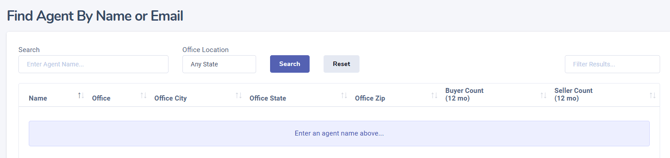
Here, you can enter their name or email, and office location to find them. Note that this location is based on their office. this will be important if their office is headquartered in a different state than the one they do business in. If you're having trouble finding an agent, you can find additional help here: Why Can't I Find a Real Estate Agent or Loan Officer in RETR?
Note: We do not currently source agent license numbers, so this is not searchable in the platform, and will not turn up any results.
How do I find agents under specific search parameters, like sales area or buyer counts?
The Agent Sales Area Search makes a great starting point, as most agents searches in RETR will start here, and the search is extremely customizable for all of your RETR needs.
- Navigate to Real Estate
- Select "Find Agents"
- Select "By Sales Area" (but note the other search options available for other search uses in the future)
- Select a Sales Area option (Ex. By State)
- Select a State & Time Period (Ex. Virginia, 12 months)
- Click "Show Rankings"
From here, you can use the search results as is, or for more specific searches, use the filters to select parameters you're looking for, such as buyer count volume, buyer count units, loan type minimums, and more. In addition, you can sort the results to change the display order, and change the number of results displayed.
How do I add agents to a list?
To add these agents to a list, use the checkboxes on the lefthand side of the results, and then click on one of the green "Save to List" Options
- Clicking on the bulleted list icon - this will automatically save the agents to the last list used
- Clicking on the arrow icon - this will allow you to view other lists to select, or create and name a new one.
Once you have selected a list, the system will ask you to confirm that you would like to add the agents, and then will provide a link to view the list once the agents have been added. You can also view any agent Saved Lists under Real Estate > Saved Lists or by using this direct link.
You can also add an agent to a list directly from their profile! This option is available on the lefthand side at the bottom of the agent highlights. Typically it will say "+ Add to Default Agent List" or the name of the last list that you added agents to. You can also use the arrow to the right of this button to select a different list to add to.
Note: Both agent and loan officer lists have a maximum limit of 1,000 line items for monthly subscribers, and RETR allows for 100 individual lists on an account. If your list has reached maximum capacity, you can always remove contacts from a list by clicking the check box next to their name and using the "Remove" option. There is no way to bulk move contacts off one list to another, and any movement would need to be manually done (remove contact from list, re-add them to new list)
How can I export an agent list?
To learn how to export a list, see this article: How do I export a list?
How To Video: