![Logo-RETR-300x300-1.png]](https://kb.retr.app/hs-fs/hubfs/Logo-RETR-300x300-1.png?width=60&height=60&name=Logo-RETR-300x300-1.png)
You can find loan officers (LOs) in RETR from Mortgage → “Find Loan Officers.” Search by name or NMLS (Nationwide Multistate Licensing System) ID, or by sales area. You can then filter by loan volume, loan type, or LO type (such as mortgage brokers), and save the results to a list.
How to Find a Loan Officer by Name or NMLS ID
Quick Search (Search Bar)
If you know the loan officer’s name, type it into the search bar at the top of RETR. This searches all of RETR, so results are more limited than on the main Loan Officer search page.

Loan Officer Search Page
Step 1: Go to Mortgage
Click the Mortgage tab.
Step 2: Select “Find Loan Officers”
Choose “Find Loan Officers” from the menu.
Step 3: Select “By Name or NMLS ID”
Choose the “By Name or NMLS ID” search option.
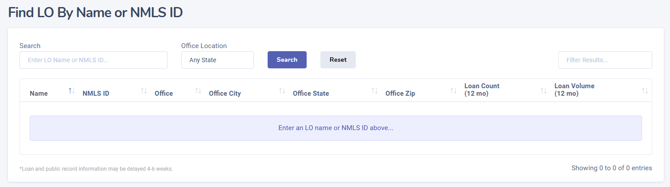
Step 4: Enter the loan officer’s details
Enter their name or NMLS ID and office location, then search.
Can’t find a loan officer? See Why Can’t I Find a Real Estate Agent or Loan Officer in RETR?
How to Search for Loan Officers by Sales Area
The Loan Officer Sales Area search is the best place to start most loan officer searches in RETR, and you can customize it heavily.
Step 1: Go to Mortgage
Click the Mortgage tab.
Step 2: Select “Find Loan Officers”
Choose “Find Loan Officers” from the menu.
Step 3: Select “By Sales Area”
Choose “By Sales Area.” Other search options are also available here for other kinds of searches.
Step 4: Choose a sales area option
Select a Sales Area option, for example By State.
Step 5: Choose a state and time period
Select your state and time period, for example Virginia, 12 months.
Step 6: Click “Show Rankings”
Click “Show Rankings” to load your results.
How to Filter and Sort Loan Officer Results
After you click “Show Rankings,” use the filters to narrow your results by:
- Loan units and volume
- Loan type
- LO type (brokers, bank/credit union LOs, or IMB LOs)
- And more
You can also sort results to change the display order, and change how many results appear on each page.
Can I Search for Those With Dual Licenses?
RETR does not currently display dual licenses in the system, and those holding dual licenses will have separate agent and loan officer profiles. While there isn't a workaround to get around this at the moment, this is great feedback for our team as we continue to look for ways to improve, and we hope to offer this soon!
How to Find Mortgage Brokers in RETR
Step 1: Run a Loan Officer Sales Area search
Follow the Sales Area search steps above through Step 6, “Show Rankings.”
Step 2: Open the “Experience etc.” filter
Once your results load, click the “Experience etc.” filter.
Step 3: Set LO Type to “Broker”
Under “LO Type,” select “Broker.”
Your results now show only mortgage brokers in the sales area you chose. You can sort them and add them to lists.
Tip: The LO Type filter also includes options for loan officers at banks, Credit Unions (CUs), and Independent Mortgage Banks (IMBs).
How to Add Loan Officers to a List in RETR
From Search Results
Step 1: Select loan officers
Check the boxes on the left side of the search results.
Step 2: Click a green “Save to List” option
- Bulleted list icon: saves the selected loan officers to the last list you used.
- Arrow icon: lets you choose another list or create and name a new one.
Step 3: Confirm
Confirm that you want to add the loan officers. RETR then gives you a link to view the list.
Important: Saving the loan officers to a list from the search results page is an important step if you're planning to export the LOs. You can not export from the search results page. You must add the LOs to a list first.
From a Loan Officer’s Profile
At the bottom of the LO highlights on the left side of a loan officer’s profile, click “+ Add to Default LO List” (or the name of the last list you used). To pick a different list, click the arrow to the right of the button.
Where Can I Find My Saved Lists?
Go to Mortgage → Saved Lists, or use the Saved Lists direct link.
Can I merge lists?
No, lists can not be merged at this time. If you need to move names from one list to another, this will need to be done manually.
Why Can't I Find My List?
If you've already made the list
- If you made a recent list but are unable to locate it from your Saved Lists page, try checking your Saved Searches page in case you created the list as a saved search instead of a list. https://retr.app/Agent/MySearches
- Saved Searches are different from Saved Lists, because only the search parameters are saved, not the actual agents/LOs.
- If you did create a saved list as a saved search instead, you can fix it by clicking on your saved list, and then using the checkboxes once it loads to save the list as a saved list instead (note that the save list and save search options are close to each other, so be sure you're selecting the right option).
If you have not made a list yet
- If you're not seeing an export button on your search results page, this is normal. Saving agents/loan officers to a list from the search results page is an important step if you're planning to export the agents/LOs. You can not export directly from the search results page. You must add the agents/LOs to a list first.
What Are the Limits on RETR Loan Officer Lists?
| Limit | Details |
|---|---|
| Contacts per list | Up to 1,000 for monthly subscribers (agent and LO lists) |
| Lists per account | Up to 100 |
- ✅ You can remove contacts from a list: check the box next to their name and click “Remove.”
- ❌ You cannot bulk move contacts from one list to another at this time.
Note: There is currently no option to bulk move contacts between lists. To move a contact, remove them from one list and add them to the other.
How to Export a Loan Officer List
To export an LO list or see loan officers’ contact information in RETR, you need the LO Recruit Add-on.
- Learn more: What is the LO Recruit Add-on?
- Export steps: How do I export a list?
How to video: