![Logo-RETR-300x300-1.png]](https://kb.retr.app/hs-fs/hubfs/Logo-RETR-300x300-1.png?width=60&height=60&name=Logo-RETR-300x300-1.png)
RETR Sidekick is a free Outlook add-in for loan officers. When you read or write an email, it finds the real estate agents and loan officers (LOs) you’re emailing with and shows their production data in a sidebar. It works in both Outlook desktop and Outlook on the web.
Looking for the Gmail version? Install RETR Sidekick for Gmail.
How to Install RETR Sidekick in Outlook
Step 1: Open Outlook Add-Ins
Go to https://aka.ms/olksideload to open the Outlook Add-Ins window.
Step 2: Search for RETR Sidekick
In the Search bar, type “RETR Sidekick.”
Step 3: Add the add-in
Find RETR Sidekick and click “Add.”
Step 4: Refresh Outlook
Refresh Outlook so the RETR Sidekick add-in loads.
How to Log In to RETR Sidekick and Confirm It’s Installed
Step 1: Open the Apps menu
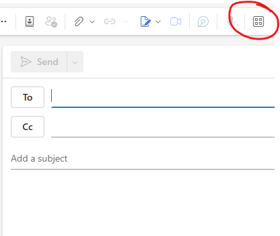
Open or start writing an email. Click the Apps icon in the Add-ins ribbon.
Step 2: Log in to RETR
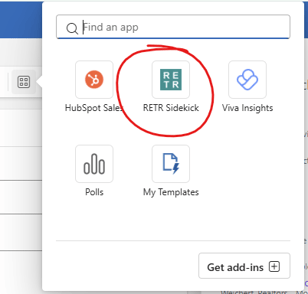
Click the RETR icon, then log in with your RETR account. If you don’t have one, you can create a free account.
Tip: Click the “Pin Apps Pane” thumbtack icon to keep RETR Sidekick open. (Watch this tip in the video)
Step 3: Open an email
Open any email. If you pinned RETR Sidekick, agent and LO production data appears automatically when RETR finds a match.
If the RETR Sidekick panel isn’t open, click the Apps icon in the Add-ins ribbon, then click the RETR icon.
Tip: To pin RETR Sidekick to your Add-ins ribbon, use the Outlook desktop app. Once pinned, it appears in both Outlook desktop and Outlook on the web. (Watch this tip in the video)
Note: If your organization installs RETR Sidekick for everyone, the RETR icon appears directly in the Add-ins ribbon, so you don’t need to click Apps first.
How to Install RETR Sidekick for Your Whole Team
If you manage Outlook for your organization, you can deploy RETR Sidekick to your whole team centrally. That way, each person doesn’t have to install it on their own.
- Open the Microsoft 365 admin center.
- Go to Settings > Integrated apps > View more apps.
We recommend this option for bank and brokerage IT teams that manage Outlook centrally.
How does RETR Sidekick work?
RETR Sidekick checks the email you’re reading or writing for email addresses and NMLS (Nationwide Multistate Licensing System) numbers. When it finds a match, it shows that person’s RETR data.
- Log in with your RETR account.
- Open an email. RETR Sidekick looks for email addresses and NMLS numbers in the message.
- See the match. If the person is in RETR’s database, their profile, Loyalty Score, and production stats appear in the sidebar.
What data does RETR Sidekick access?
- ✅ RETR Sidekick reads your email locally on your device to find email addresses and NMLS numbers
- ✅ RETR Sidekick sends only those email addresses and NMLS numbers to RETR to check for a match
- ❌ RETR Sidekick does not send or store the content of your emails
- ❌ RETR Sidekick does not access your contacts, address book, or calendar
Does RETR Sidekick for Outlook read my email content?
Yes, but only on your device. RETR Sidekick reads your email locally to find email addresses and NMLS numbers. It does not send or store your email content anywhere. It sends only the email addresses and NMLS numbers it finds to RETR, to check for a match.
Does RETR Sidekick work with Outlook desktop and Outlook on the web?
Yes. RETR Sidekick works with both Outlook desktop and Outlook on the web. Install it using the steps above.
Is RETR Sidekick free?
Yes. RETR Sidekick is free. You only need a RETR account, and you can create one for free when you log in.